


 Sonar Tracker
Grades
Check and correct grades
Grades Management is where you check uploaded grades and put problems right before you publish. It counts the grades in each qualification, flags set-up problems with warning icons, and lets you add, edit, move and delete grades for any pupil or student. A change here reaches the reports only when you republish the data set or collection.
Before you start
Section titled “Before you start”You need an authority group with Access Data Section, such as Admin. The cohort needs at least one grades file: until then, Grades Management is unavailable and says “You need to have at least one Grade to access this section”.
Open Manage Datasets
Section titled “Open Manage Datasets”- Open the cohort in DATA.
- Select Grades, then Grades Management, then Manage Datasets.
- Choose the data set in Select a data set to continue. For Assessments, also choose the collection.
The page shows the term the data set relates to, such as “Term: Year 11 Term 1”. At KS3/4 it also shows which classes it uses, such as “Classes: KeyStage 4”. The table lists every qualification on the Matching page, with or without grades in this data set.
| Column | What it shows |
|---|---|
| Qualification Name | The qualification |
| Classes (KS5: Set of Classes) | The set of classes the qualification is assigned to, or (Multiple) |
| Grades Count | The number of grades in this data set, with any warning icons under it. Select it to see the grades. |
| ATTITUDE TO LEARNING | The number of judgements in each Attitude to Learning (AtL) category, such as Attitude. A count is shaded pink when anyone with a grade has no judgement. |
| EAP | The Expected Attainment Pathway (EAP) chosen on the Matching page |
| Grades Method (KS5: Grade Method) | The grade method the EAP sets for this term |
| Actions | A magnifying glass, titled Manage Qualification Details, that opens Manage Qualifications. When someone is missing class data, also a red triangle with a spanner, titled Add missing class data |
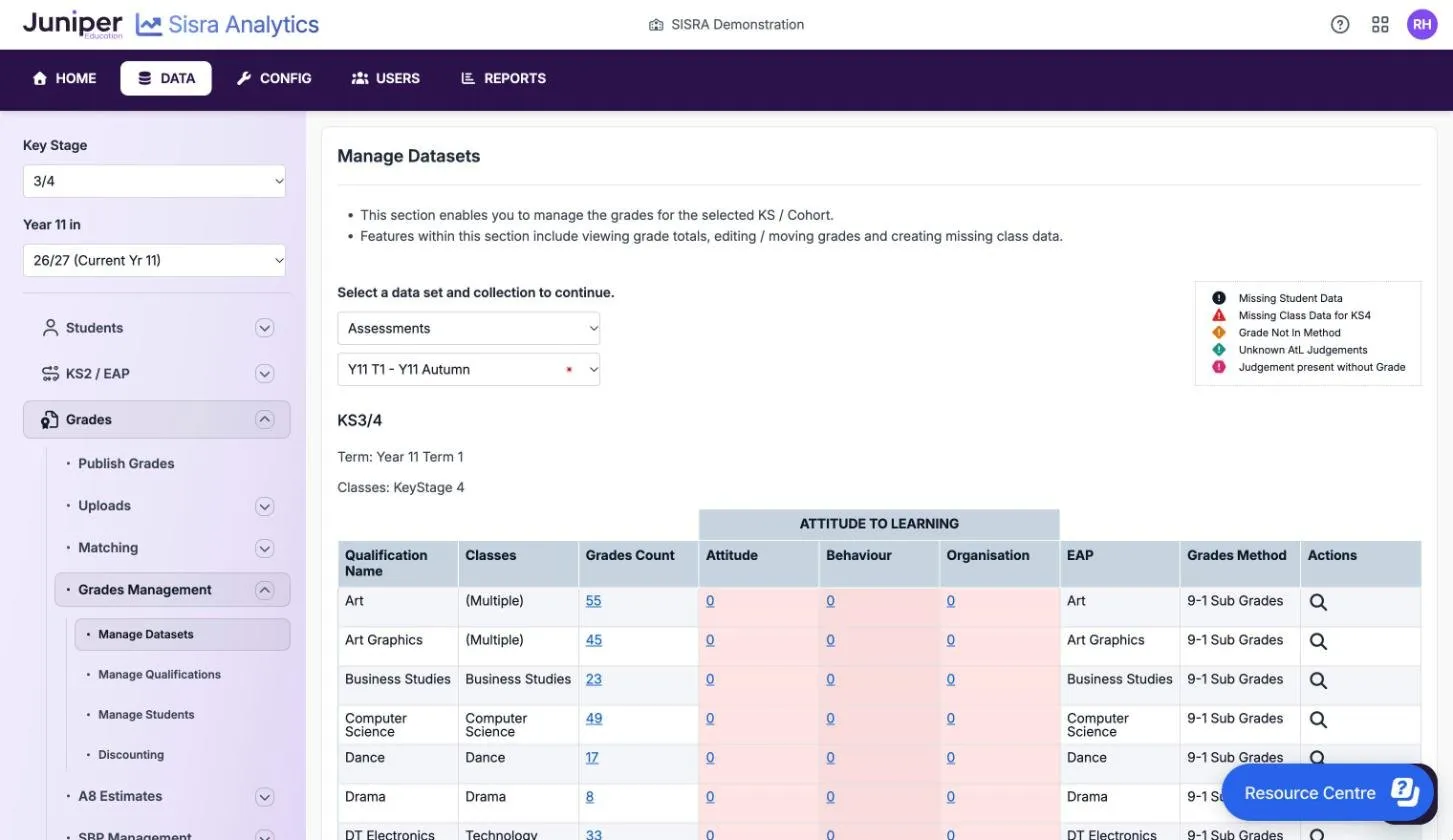
The key at the top right names the warnings for the key stage. Hover over an icon to see how many grades or people it affects. Warning icons explains each one and whether it stops you publishing.
Work with one qualification’s grades
Section titled “Work with one qualification’s grades”Select a qualification’s Grades Count to list each pupil’s or student’s grade in this data set. Select a judgement count instead to work with AtL judgements. Every change is checked again, and warning icons appear where needed.
Edit grades
Section titled “Edit grades”- Select Edit Grades.
- Type over the grades you want to change.
- Save the changes.
Add a grade
Section titled “Add a grade”- Select Add Grade.
- In Add Grade For, choose the Student, choose a results date or enter a new one, and enter the Grade.
- Select Add, and repeat for anyone else.
At KS3/4, the date decides which grade is the first entry, so check it. Anyone highlighted in red has no class for the qualification.
Change a grade’s date
Section titled “Change a grade’s date”- Tick the grades.
- Select Edit Date.
- In Edit Grade Date, choose a date or add one, then select Save.
The new date applies to the data set straight away. Republish for the reports to use it.
Move or copy grades
Section titled “Move or copy grades”Move grades that were uploaded against the wrong qualification, such as combined science grades uploaded to an old KS3 science qualification.
- Tick the grades. The box in the Grade heading ticks the first 100.
- Select Move or Copy.
- Choose the qualification to move or copy them to, then confirm.
You can move or copy up to 100 grades at a time, within one data set or collection. You cannot undo a move. AtL judgements do not move with the grades: import them again.
Delete grades
Section titled “Delete grades”- Tick the grades or judgements.
- Select Delete.
- Confirm.
To remove a grade and its AtL judgements together, tick Delete associated Judgements before you confirm.
Edit AtL judgements
Section titled “Edit AtL judgements”- Select the qualification’s judgement count, such as the count under Attitude.
- Select the edit button named after the category, such as Manage Attitude.
- Type over the judgements, or type one where there is none, then select Save.
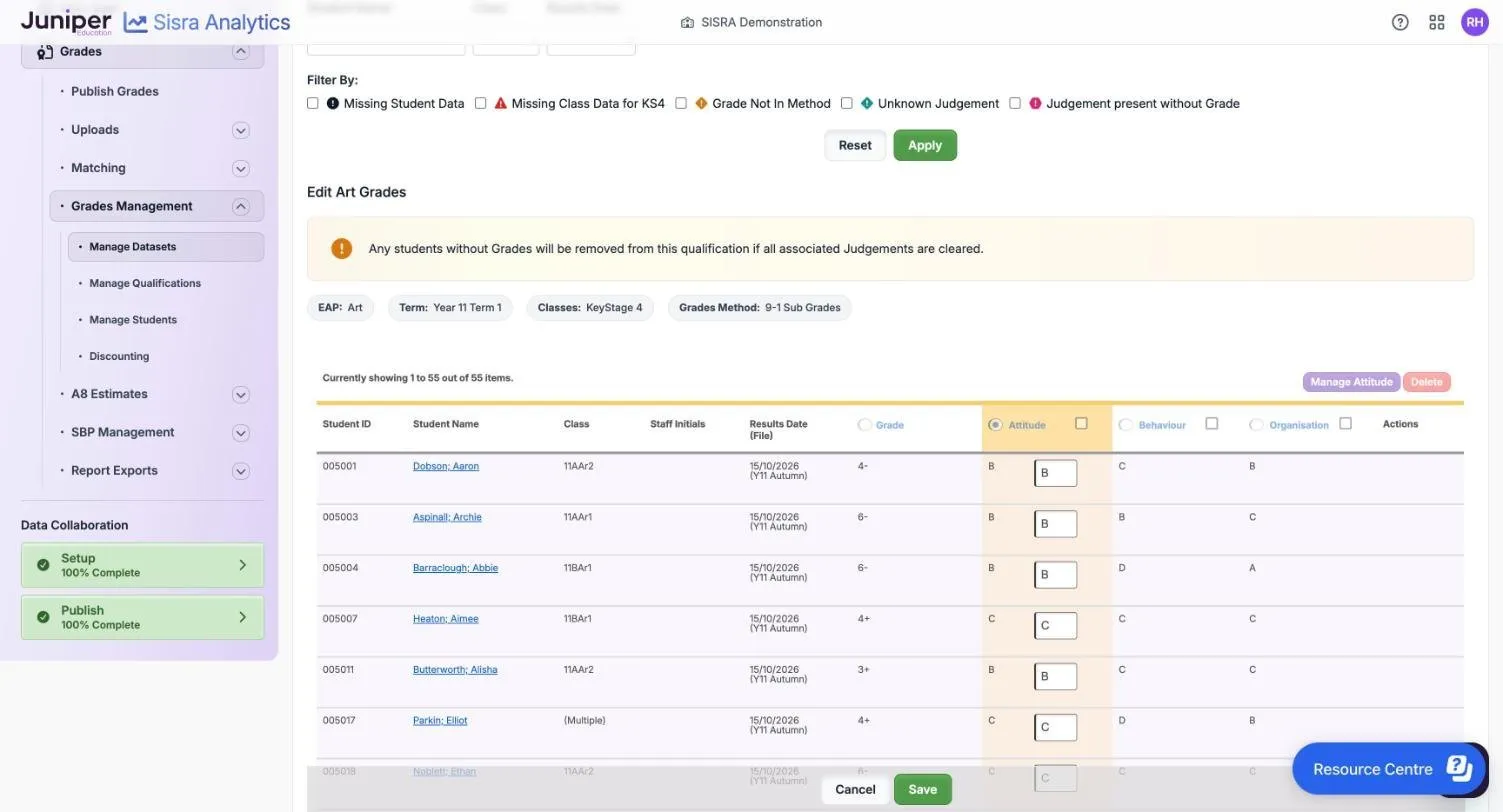
A judgement shows in the reports only if the pupil or student has a grade in the same qualification.
Delete a qualification’s grades
Section titled “Delete a qualification’s grades”Manage Qualifications lists each data set and collection that holds grades for a qualification, with the counts. Use it to remove a wrong upload of one qualification, or a duplicate qualification.
- Select Grades Management, then Manage Qualifications.
- Choose the qualification in Select a qualification to continue:.
- Tick the data sets and collections in the Select column.
- Select Delete Selected, then confirm.
If you delete every grade a qualification has, Sisra deletes the qualification too. It disappears from the Matching page with its set-up, so do this only for a qualification created by mistake.
Work with one pupil or student
Section titled “Work with one pupil or student”Manage Students shows every grade and AtL judgement one pupil or student has in a data set. Use it for remarks, resits and single corrections.
- Select Grades Management, then Manage Students.
- Choose the pupil or student in Select a student to continue.
- Choose the data set, and for Assessments the collection.
The same tools work here: Add Grade, Edit Grades, Delete and Edit Date. Manage Student’s Grades on a Student Detail page also leads here. Record resits and remarks explains which tool to use for each.
Fix missing student data
Section titled “Fix missing student data”Missing Student Data means a grade belongs to a Student ID that is not in the cohort’s student data. Work through these checks:
- Search the student list for the pupil or student. If they are there, the IDs differ between the files. Correct the wrong file and upload it again.
- If they belong in the cohort but are missing, import student data that includes them. Or create them: open the qualification’s Grades Count and select the Create Missing Student icon in Actions. Enter their filter values, save, then add their classes.
- If they left and were deleted from the cohort by mistake, create them again and set their status to Left School.
- If they do not belong in the cohort, delete their grades, with Delete associated Judgements ticked.
- Republish the grades.
Changing Status on a pupil’s or student’s Student Detail page saves the new status straight away, without a Save button. Publish student data afterwards. Manage the student list and statuses explains the statuses.
Fix missing class data
Section titled “Fix missing class data”Missing Class Data for KS3, Missing Class Data for KS4 or Missing Class Data for KS5 means someone with a grade is not in any class in the qualification’s set of classes for that key stage. Reports put them in a Not in Class group until you fix it.
- Check that the qualification is assigned to a set of classes: select Students, then Classes, then Assign Quals. If it is not, assign one.
- Check the pupil’s or student’s classes on their Student Detail page, and add the class they were taught in.
- If they were not taught in a class, such as for study off site, create the missing class information from Grades Management. Open the qualification’s Grades Count and follow the link in the banner.
- If the qualification has no set of classes, enter a Set of Classes Name and a Class Name, such as
Off Site. Otherwise choose a class. - Untick anyone who should not be in the class, and save.
- Publish student data, then the grades.
Manage classes and assign qualifications covers sets of classes.
Discount a grade by hand (KS3/4)
Section titled “Discount a grade by hand (KS3/4)”The DfE’s discounting rules decide which grades count in headline measures, using the barring codes on the Matching page. Discounting lets you discount a pupil’s grade by hand where those rules give the wrong answer.
- Select Grades Management, then Discounting.
- Select the number under Manually Discounted Students for the qualification.
- Select the pupil, then Discount Selected.
- Choose the qualification that should discount the grade, then select Add Discounting.
- Republish the grades.
A grade you discount by hand still shows in the grades reports, but no longer counts in headline measures published with DfE rules. It cannot itself discount another qualification. Changes here do not show a republish banner, so republish without waiting for a prompt. How Sisra calculates the KS4 measures explains discounting.
If something goes wrong
Section titled “If something goes wrong”A qualification has no grades. The grades may be in another qualification, not uploaded, or in another data set. Check Manage Qualifications for the qualification’s counts in each data set.
A judgement does not show in the reports. The pupil or student needs a grade in the same qualification. To load many judgements, see Upload AtL judgements.
The reports have not changed. Republish the data set or collection.